Email Support
Unthread allows you to relay support emails to your Slack channel, and you can respond to customers directly from Slack. This means you never need to open Outlook or Gmail again 🙌
More importantly, email tickets for existing Slack customers will now be visible from one place so you can view all customer communications together.
🎦 Check out this demo on email integration with Unthread.
🛠 Setting up the connector
The first step is to forward messages from an email address into Slack. That way, your entire team has context, and you can use assignment rules to notify the right responder. Head over to “Channels”> “Email” from your Unthread dashboard to get started.
Set up email forwarding
First, choose a name for the support email group, something like “[Company] Support” will do just fine! Then, add the email address that you use to receive support emails. You should have already set this up via your email provider. Lastly, set up email forwarding to the Unthread email that’s in the dashboard. This is the trickiest step! Follow these steps to enable forwarding, depending on which email provider you use:
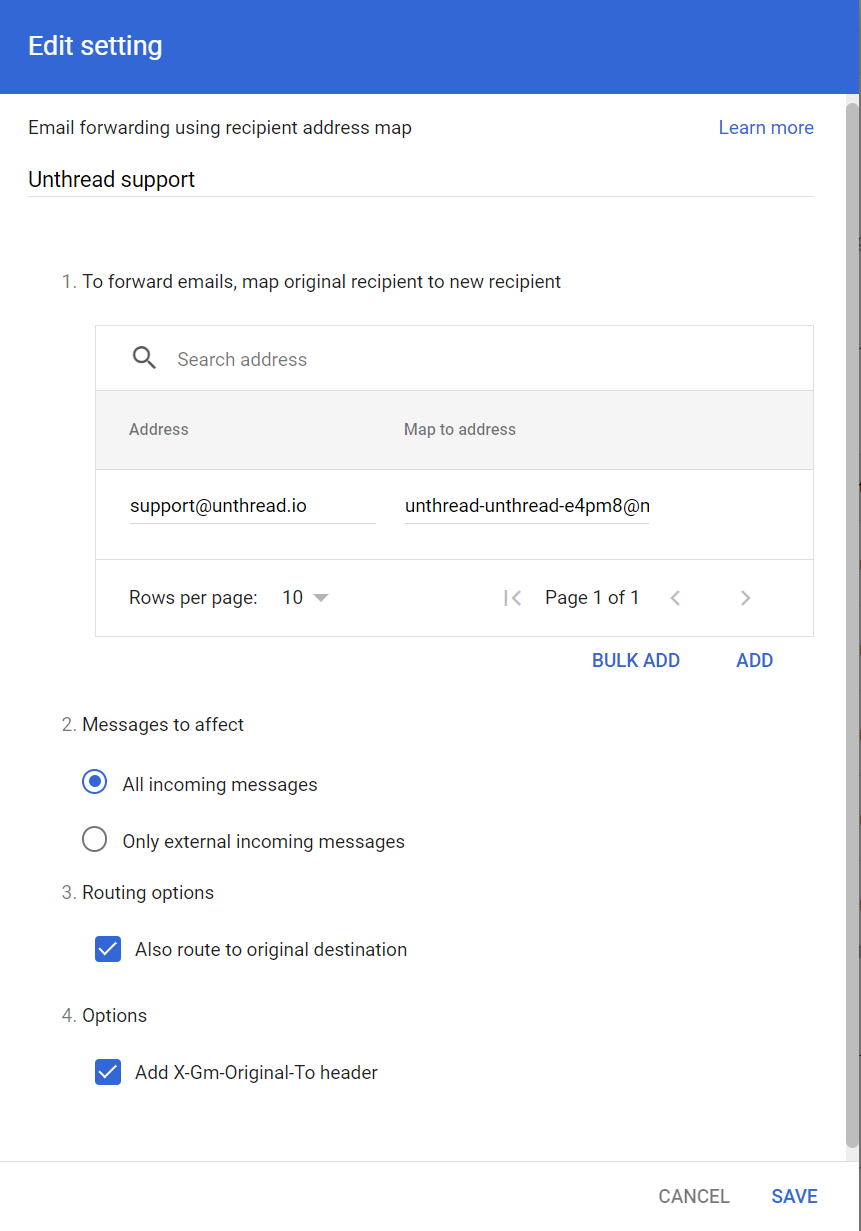
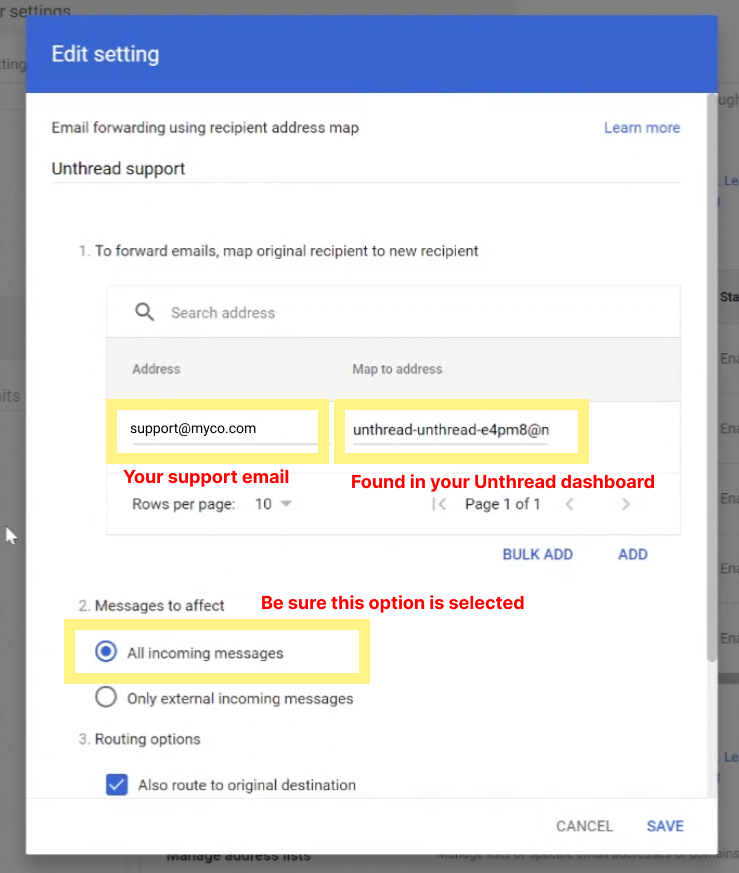
The preferred method is to use address maps, which allows you to forward emails from a specific address to another address. This is more reliable than using a Google Group or other forwarding method. In order to set this up, you’ll need to be an admin of your Google Workspace account. Go to the Gmail Routing settings and scroll down to “Email forwarding using recipient address map”. Click “Add Another Rule”. In the popup, set “Address” to the email address you want to forward, and “Forward to” to the Unthread email address. Click “Add”. Make sure “Messages to affect” is set to “All incoming messages” and “Also route to original destination” is checked. Click “Save”.
Please contact your account manager if you need help setting this up or you need to use a different forwarding method.
📖 Some common mistakes to double-check:
-
Be sure to follow the steps in those guides rather than use a Google Group. It’ll be more reliable this way and is worth the effort!
-
Be sure that your support email (for example “[email protected]” or ”[email protected]”) matches exactly what you enter into the Unthread dashboard
-
Double-check that you’ve entered the unthread email (should look something like “[email protected]” is entered in your email forwarding setup
-
Outlook / Microsoft 365
Follow these steps to set up email forwarding in Outlook.
Choose a Slack channel
Select a channel from the dropdown, and the email contents will be posted there. For your channel to appear, it must be an internal channel (not a Slack Connect or shared channel).
ℹ️ Emails do not get posted to a Slack Connect channel for privacy reasons; users who submit emails may not want to share them with the rest of the team.
Set up assignment rules
Inbound emails can have their own assignment rules that you configure on this page. This is important because the email may not match an existing customer, so you’ll need to determine how to assign those messages.
Domain verification (optional)
By default, email replies sent from Slack or Unthread will come from an email address ending in @mail.unthread.io.
If you’d like to change this, you can verify your own domain so that replies come from an email address with your domain. To do this, head over to Settings → Security and select “Add email domain”.
ℹ️ Verification will require updating your websites DNS records, so be sure to have access to your web hosting provider before starting the process.
📨 Managing emails in Slack
Once setup, you’ll start seeing email content posted directly to your Slack channel. How great is that!
Tracking & assigning new messages
You’ve already set up the assignment rules in the first step, new emails are tracked just like any other message. This means you can set up escalation paths & SLAs, triage messages with your team, and more. When a message is assigned to you, it will be in your Inbox.
New messages will use the 📩 icon to indicate that the message is from an inbound email.
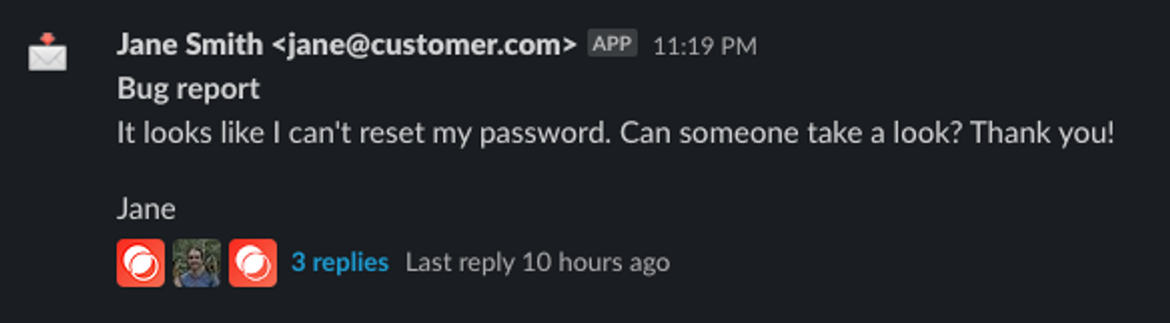
Discussing internally
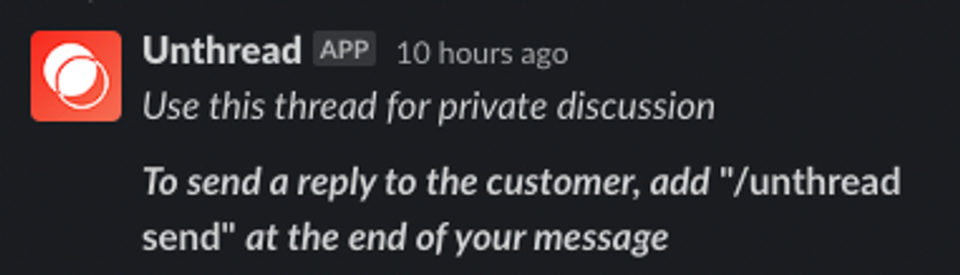
Unthread will create a thread for the inbound email where you can discuss things internally. By default, all comments in this thread are private and not shared with the customer. You’ll see a message like the one below posted with any new email.
Sending replies to customers
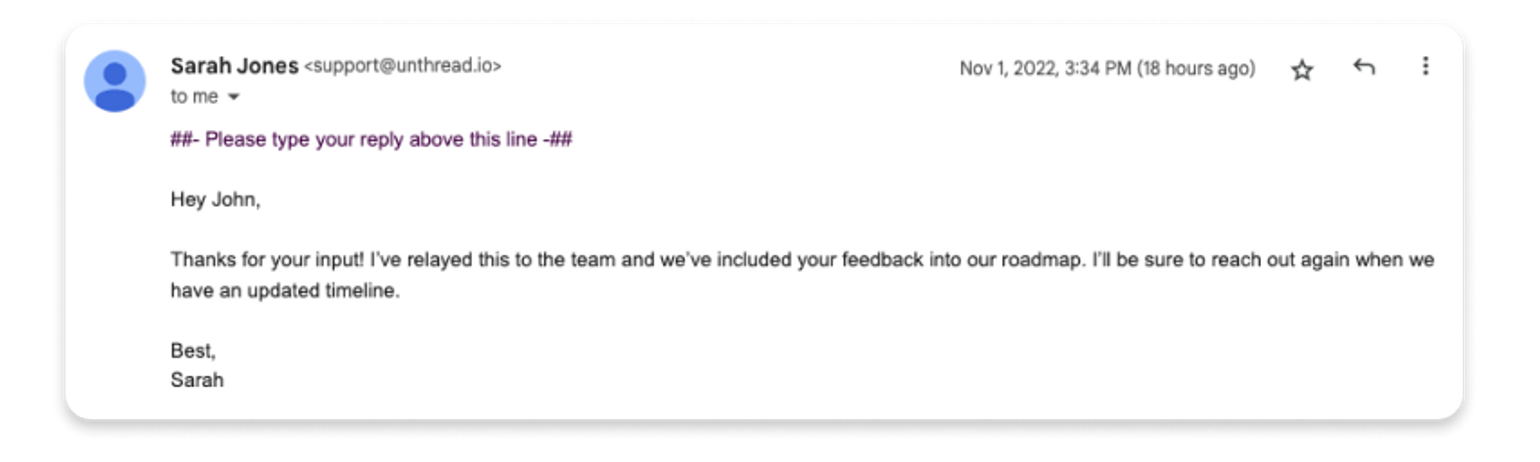
This is the good stuff and allows you to talk with customers without ever leaving Slack. Compose your message in the thread that Unthread has created for you, and when you’re ready to send, include “/unthread send” at the bottom of the message.
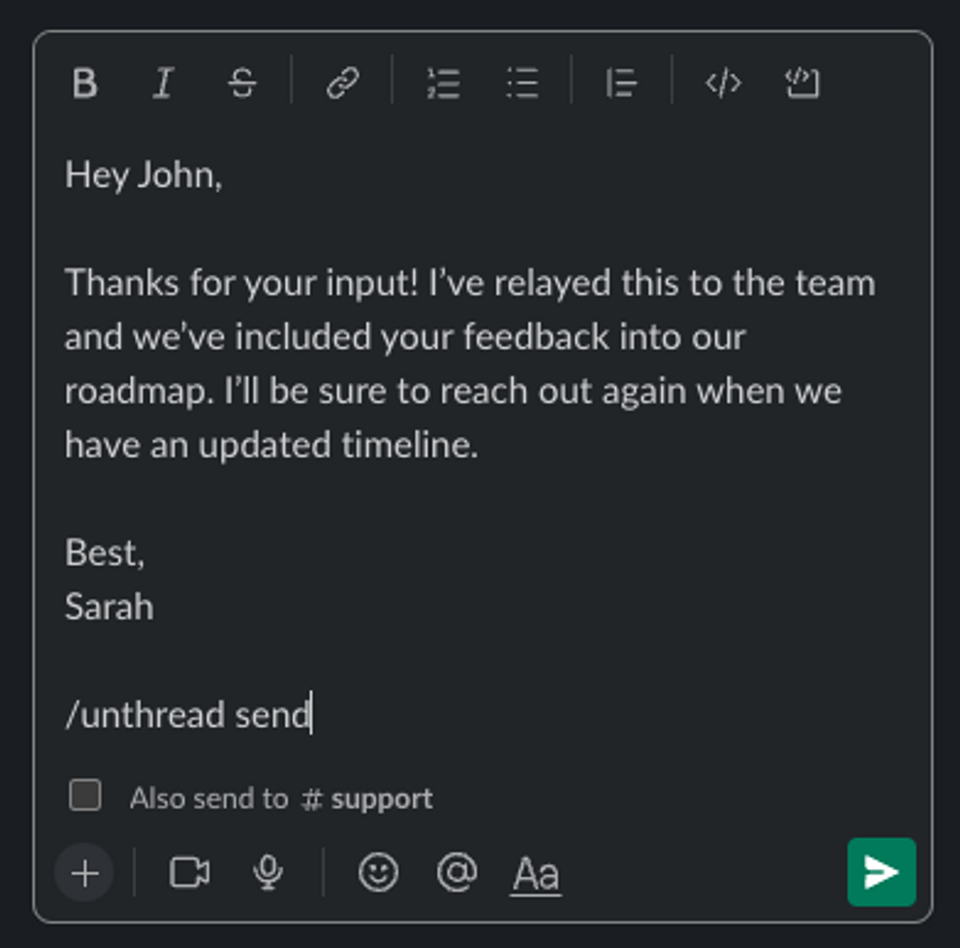
When you include this, the message will be sent to the customer in the same email thread, and anyone cc’ed on the message will automatically be included.
Here’s how that very reply will look to the customer in the email that they receive:
📊 Analytics
Response times & resolution times
You’ll get the same great analytics on response rates and resolution times that you get with other messages. The “Analytics” tab will show you these reports, and allow you to filter for email vs. Slack vs. in-app chat responses
Linking to customers
Email conversations will automatically be linked to customers based on domain. When you view a customer profile, you’ll be able to see a history of conversations across email, Slack, and in-app chat. To update the domain for a given customer, head to the “Settings” tab, and scroll to the section “Email domains for this customer”.
🛠️ Troubleshooting
Authorization Failed when linking/configuring an email inbox
If you see an Authorization Failed error when linking/configuring an email inbox from the web dashboard, confirm that you’re configuring the inbox inside a specific project where you have Owner permissions.
Why aren’t emails appearing in Slack?
- Be sure that your support email (for example “[email protected]” or ”[email protected]”) matches exactly what you enter into the Unthread dashboard
- Double-check that you’ve entered the unthread email (should look something like “[email protected]” is entered in your email forwarding setup
- Check the Slack channel used in the integration, and be sure that it hasn’t been deleted or archived
Why aren’t email replies from my team members appearing?
It’s likely because your forwarding rules aren’t sending emails from team members to Unthread.
When setting up your email forwarding, be sure that you have this configured correctly:
Why is a single email thread creating multiple Unthread conversations?
Unthread should automatically group email threads into a single conversation.
If you see mulitple conversations, it may be due to:
- Email forwarding rules may not be set up correctly (please refer to the photo above)
- If the original sender is moved to bcc, a new conversation will be created (since replies will no longer notify the original submitter)
How do I block emails?
If you’re using the Gmail forwarding option, you can leverage Gmail’s spam filtering and blocking rules out of the box.
To block additional emails, you can change this by going to “Settings” > “Email”, and clicking “Edit configuration” next to one of your inboxes. At the bottom, you’ll see a section for “Blocked emails”, and you can add either a single email (e.g. [email protected]), or a full domain (e.g. spam-r-us.com).