Article
Unthread MCP
3 min read
Last updated 6 days ago
Unthread supports the Model Context Protocol (MCP), allowing you to connect your AI assistant to your Unthread workspace.
Setup Instructions
Claude.ai (Web)
-
Go to claude.ai and sign in
-
Navigate to Settings → Connectors → Add custom connector
-
Enter a name (e.g., “Unthread”) and the server URL:
https://app.unthread.io/api/mcp
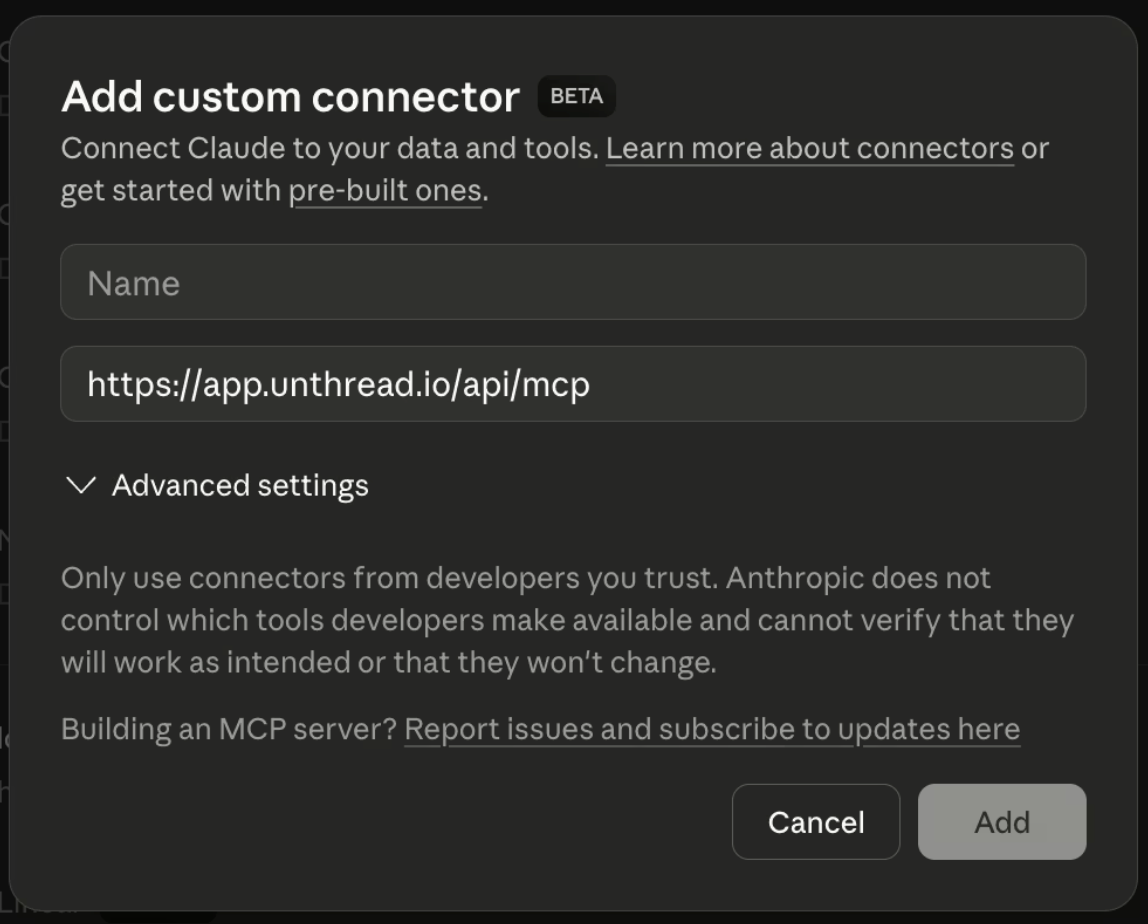
- Click Add and follow the authorization prompt
- Sign in with your Unthread account when prompted
- Authorize the connection to grant Claude access to your workspace
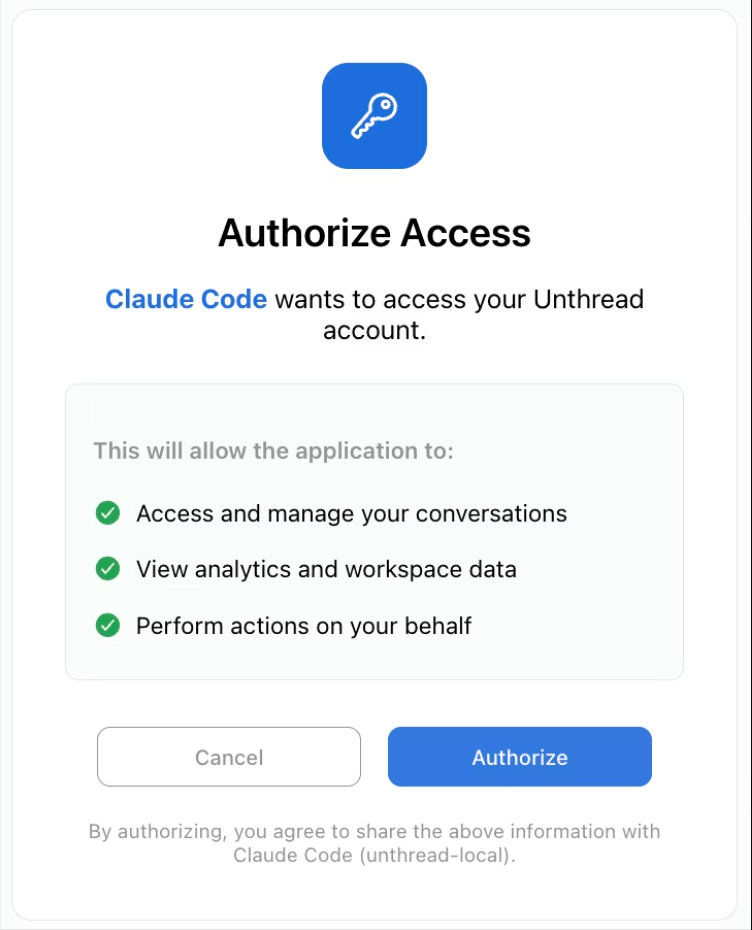
You’ll be asked to authorize access to your Unthread workspace. This uses secure OAuth authentication - your password is never shared with Claude.
Claude Code (CLI)
- Open your Claude Code configuration file at
~/.claude.json - Add Unthread to the
mcpServerssection:
{
  "mcpServers": {
    "unthread": {
      "url": "https://app.unthread.io/api/mcp"
    }
  }
}
- Restart Claude Code
- When you first use an Unthread tool, you’ll be prompted to authenticate via your browser
Cursor
- Open Cursor Settings → MCP → Add new global MCP server
- This opens your
~/.cursor/mcp.jsonfile. Add Unthread to themcpServerssection:
{
  "mcpServers": {
    "Unthread": {
      "url": "https://app.unthread.io/api/mcp"
    }
  }
}
- Save the file and restart Cursor. The Unthread MCP should now show up in your Cursor Settings.
- When you first use an Unthread tool, you’ll be prompted to authenticate via your browser
Example Prompts
Try asking your AI assistant:
- “List my open conversations”
- “Show me conversations from the last week”
- “What’s our ticket volume trend this month?”
- “Find the conversation about the billing issue”
Troubleshooting
”Authorization failed” error
Make sure you’re signed in to Unthread with the correct account. The OAuth flow should open a browser window - if it doesn’t, check if pop-ups are blocked.
Security
- OAuth 2.0: We use industry-standard OAuth 2.0 with PKCE for secure authentication
- No password sharing: Your Unthread credentials are never shared with AI assistants
- Scoped access: The AI assistant can only access data you have permission to view
- Revocable: You can disconnect the integration at any time from your Unthread settings
For more details on our security practices, visitunthread.io/security.